The mixer
Channel settings
The gear on a strip opens everything else about that channel. A linked pair has one set of settings for both sides, with a pan for each.
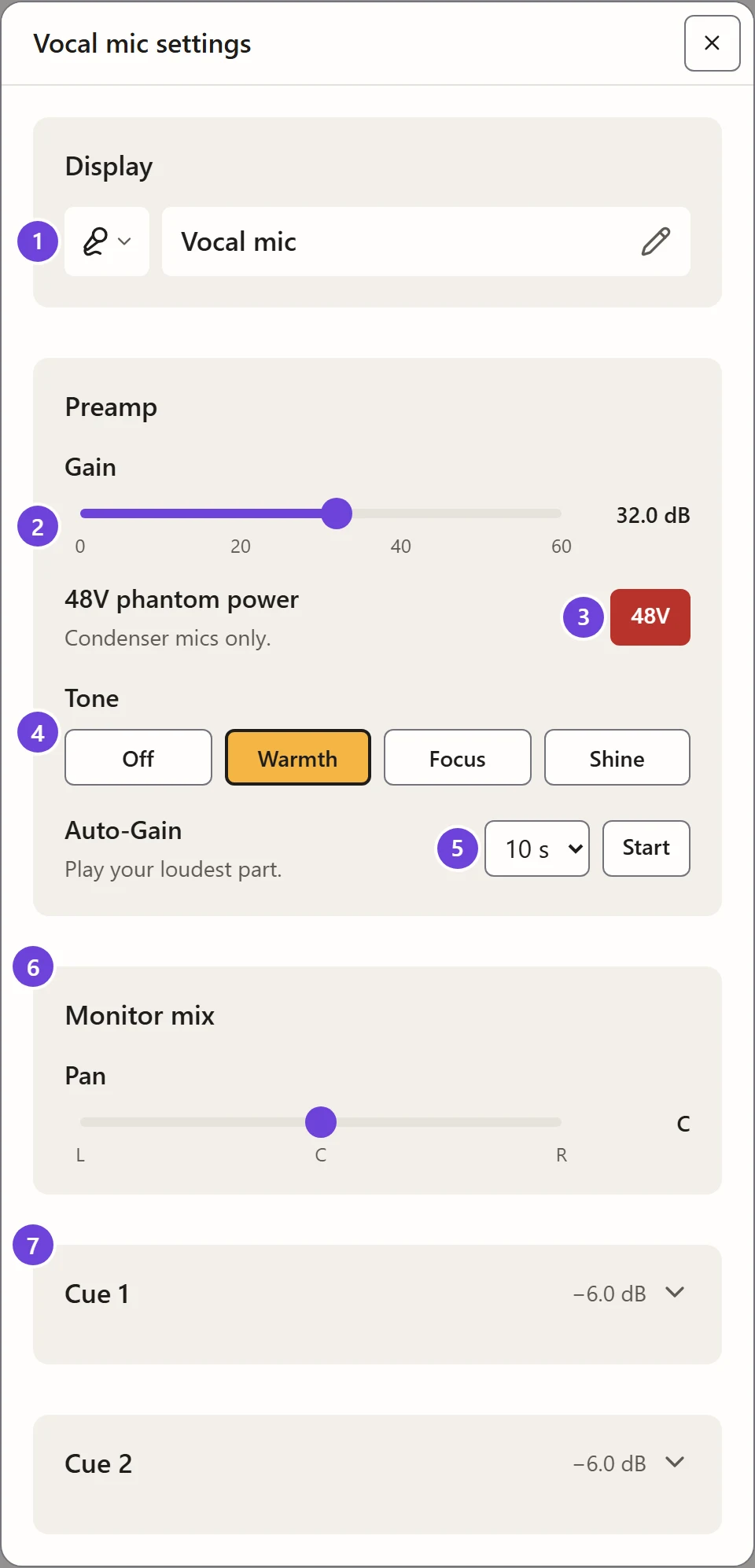
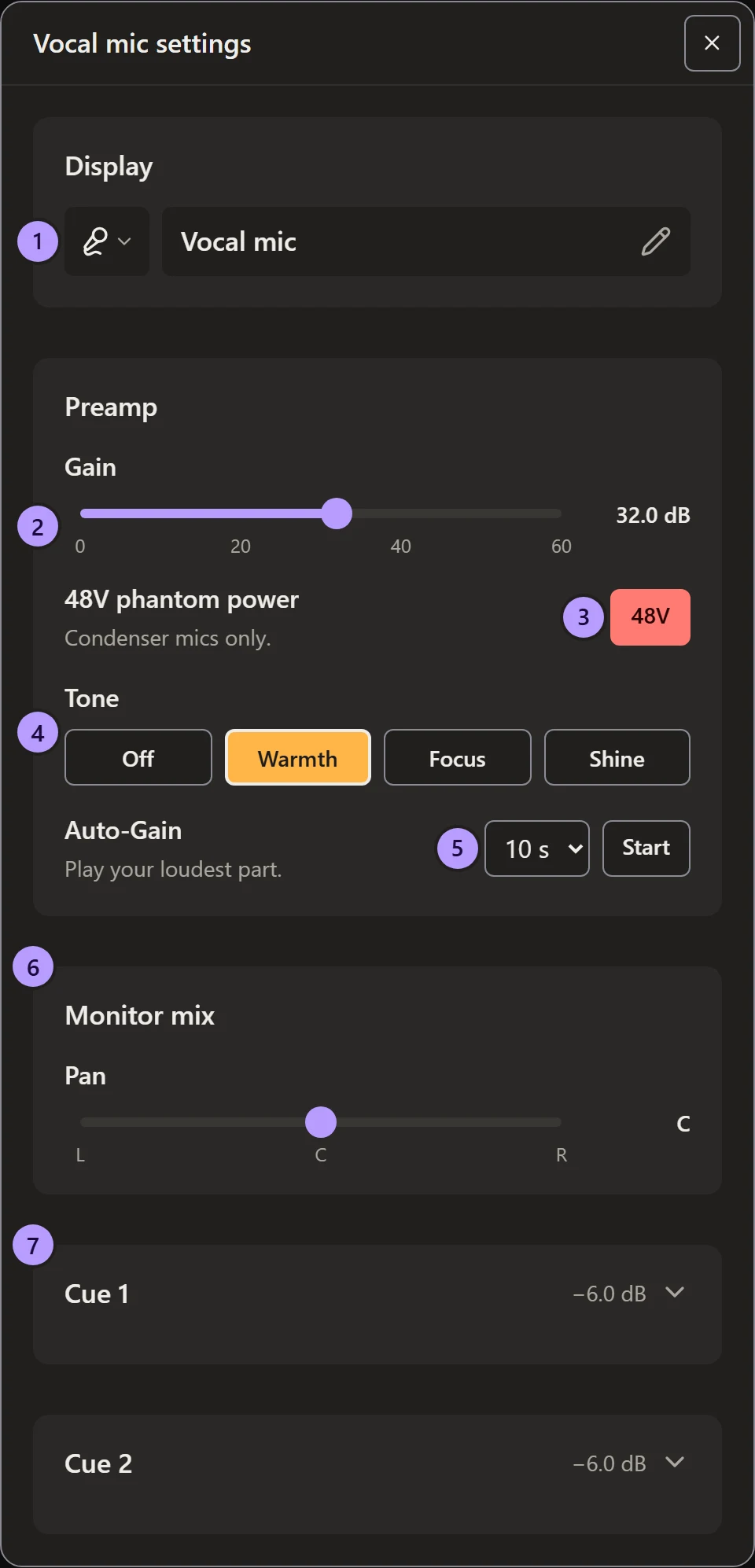
- Icon and name How the strip and the tray show the channel.
- Gain (Inputs 1 and 2) The preamp’s level.
- 48V (Inputs 1 and 2) Phantom power for condenser mics.
- Tone (Inputs 1–4) Off, Warmth, Focus or Shine.
- Auto-Gain (Inputs 1 and 2) Let the Volt set the gain for you.
- Pan Left to right in the monitor mix.
- Cue 1 and Cue 2 This channel’s level in each headphone mix.
Name and icon
- Icon: open the list beside the name and pick one of 40, such as a mic, guitar, keyboard or game console. The crossed circle goes back to the channel’s own.
- Name: type up to 24 characters. Clear it to go back to the Volt’s name, such as “Input 1”.
- Show in tray (desktop app only): whether the channel appears in the tray mixer.
Names and icons are part of your mix, so a mix link carries them too.
Preamp
| Setting | Range | Channels |
|---|---|---|
| Gain | 0 to 60 dB, in 0.5 dB steps | Inputs 1 and 2. Line inputs are fixed. |
| 48V | On or off | Inputs 1 and 2 |
| Tone | Off, Warmth, Focus, Shine | Inputs 1–4 |
Auto-Gain
Let the Volt listen and set the gain for you.
- Choose how long it listens, from 5 to 90 seconds. 10 is a good start.
- Choose Start.
- Sing, speak or play the loudest part you’ll record, until the countdown ends.
- The gain slider shows what the Volt chose.
If the gain doesn’t change, the Volt heard too little: get closer, play louder or listen for longer, and try again.
Pan
Where the channel sits between left and right in the monitor mix, from L100 to R100. It catches at the centre (C). A linked pair has a Left pan and a Right pan: spread them apart for a wide stereo sound.
Cue sends
Each headphone mix (cue) has its own level, pan and mute for this channel, folded away under Cue 1 and Cue 2. The heading shows the level, so you can read it without opening it.
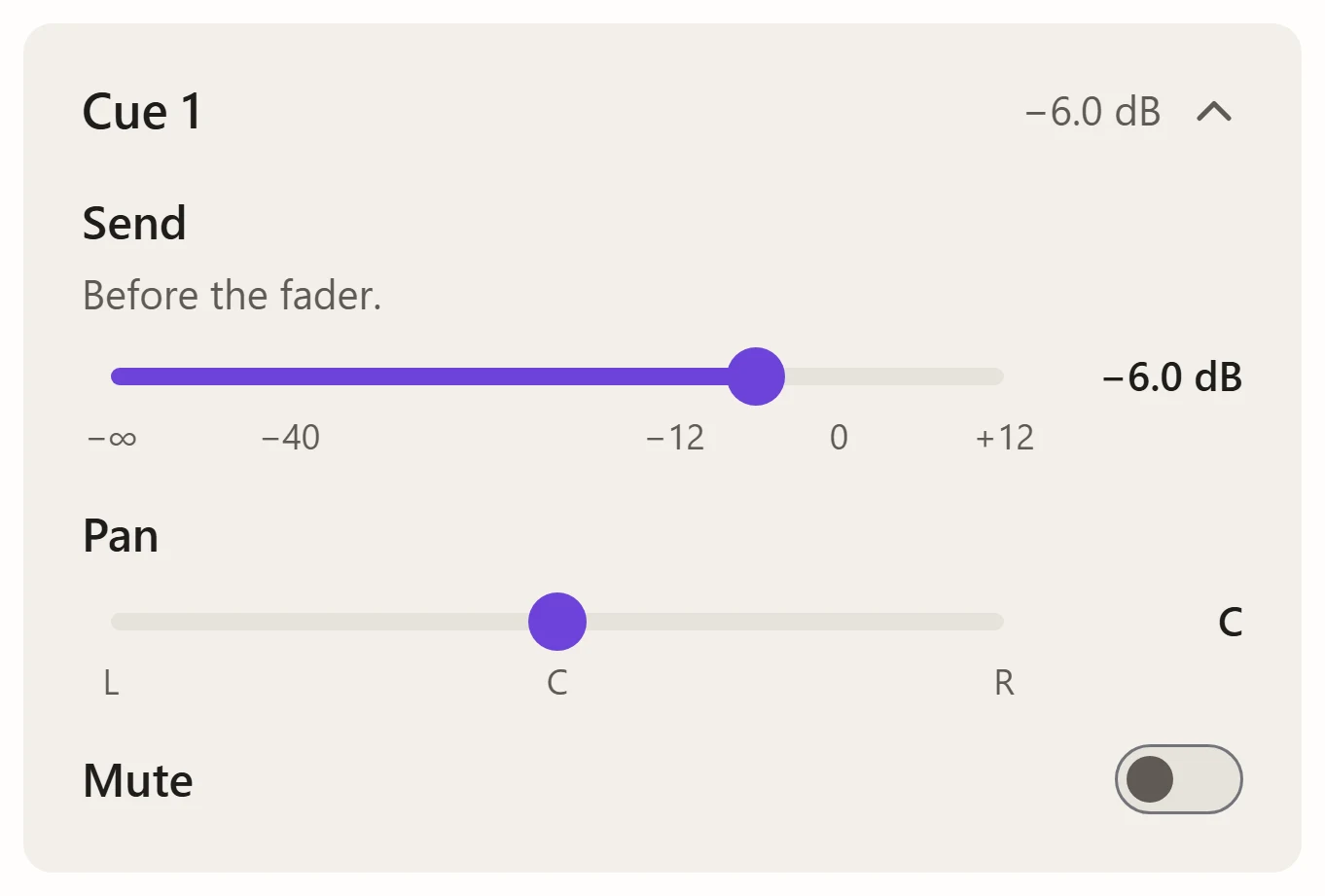
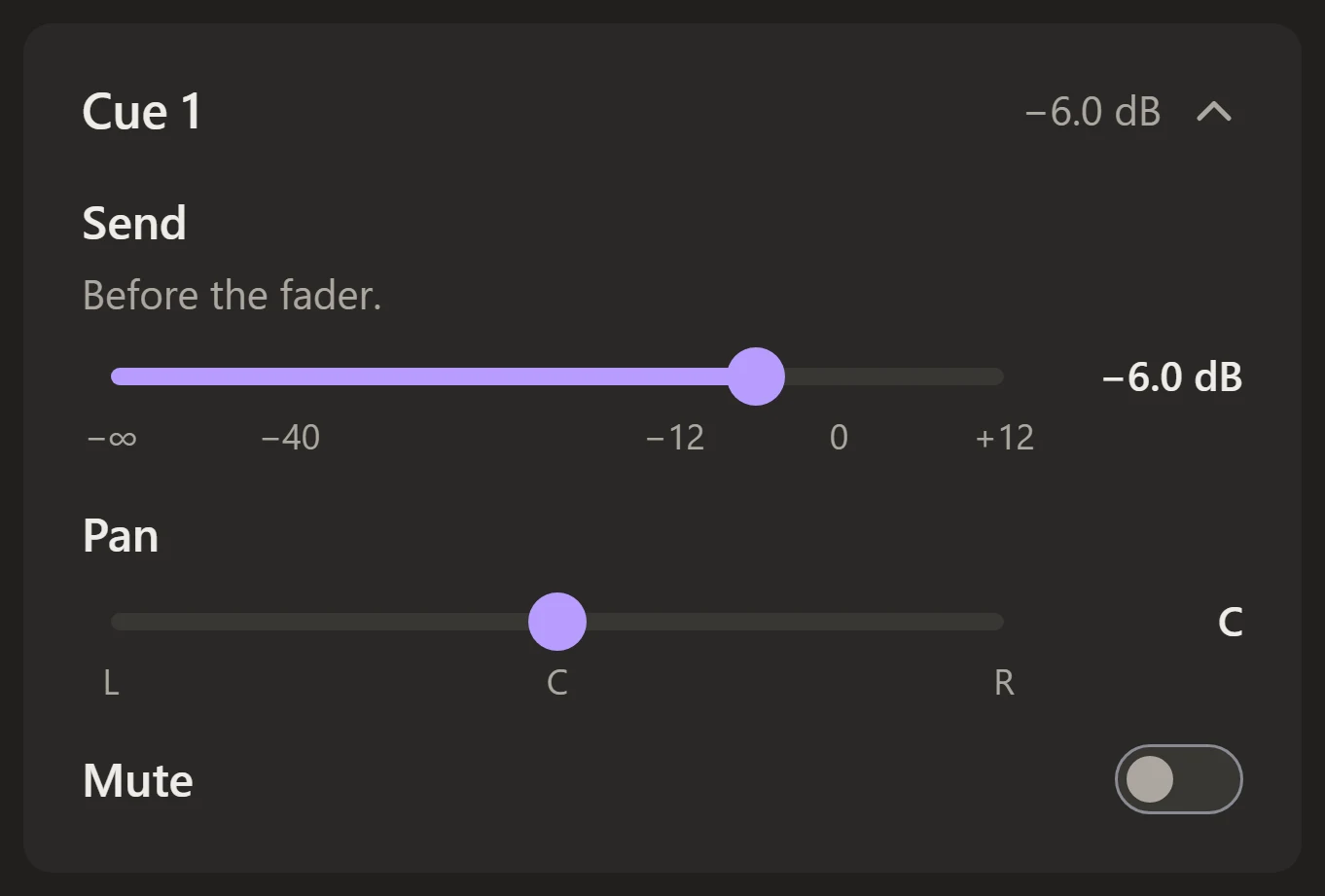
- Send is taken before the fader, so moving the channel’s fader doesn’t change a headphone mix.
- Sends only matter while that cue plays its own mix. Set that in Settings › Cues and headphones.
See a separate headphone mix for the whole job, step by step.