The mixer
Settings
The gear at the right of the top bar opens Settings. Each group is below, with what every setting does.
Device
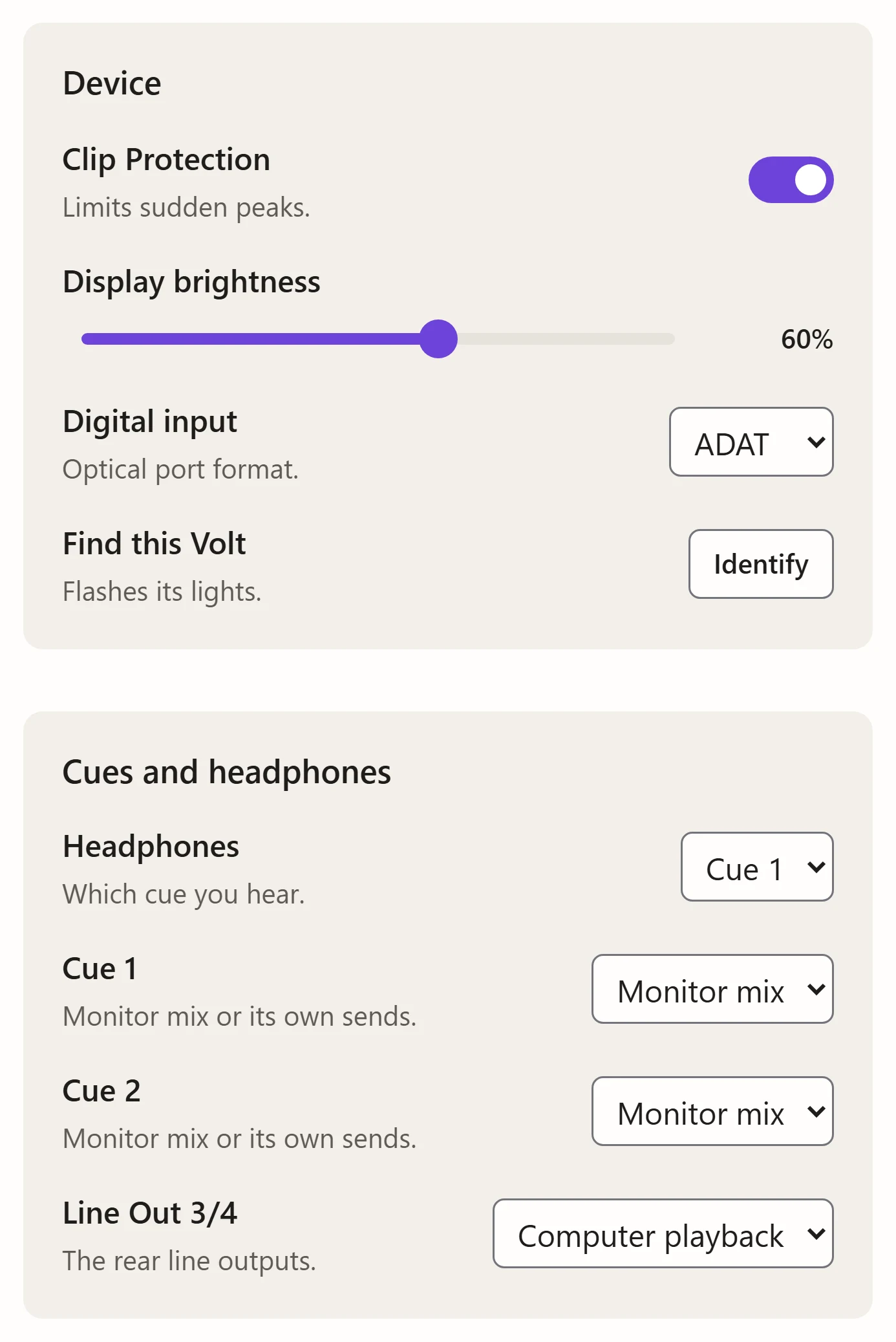
The Volt’s own settings. The Volt remembers them, whichever computer it’s on.
| Setting | What it does |
|---|---|
| Clip Protection | The Volt’s limiter, which catches sudden peaks before they distort. |
| Display brightness | The Volt’s display. 0% turns it off. |
| Digital input | Whether the optical port takes ADAT or S/PDIF. The digital strips follow it. |
| Find this Volt | Identify flashes the Volt’s lights, to tell which one is connected. |
Cues and headphones
What the headphones and the rear outputs play. See Outputs and cues for how cues work.
| Setting | Choices | What it does |
|---|---|---|
| Headphones | Cue 1, Cue 2 | Which cue you hear in the headphones. |
| Cue 1, Cue 2 | Monitor mix, Own mix | The same as the speakers, or the cue’s own sends. |
| Line Out 3/4 | Computer playback, Same as Cue 1, Same as Cue 2 | What the rear line outputs play. |
View
How the page looks on this computer. None of these change what you hear.
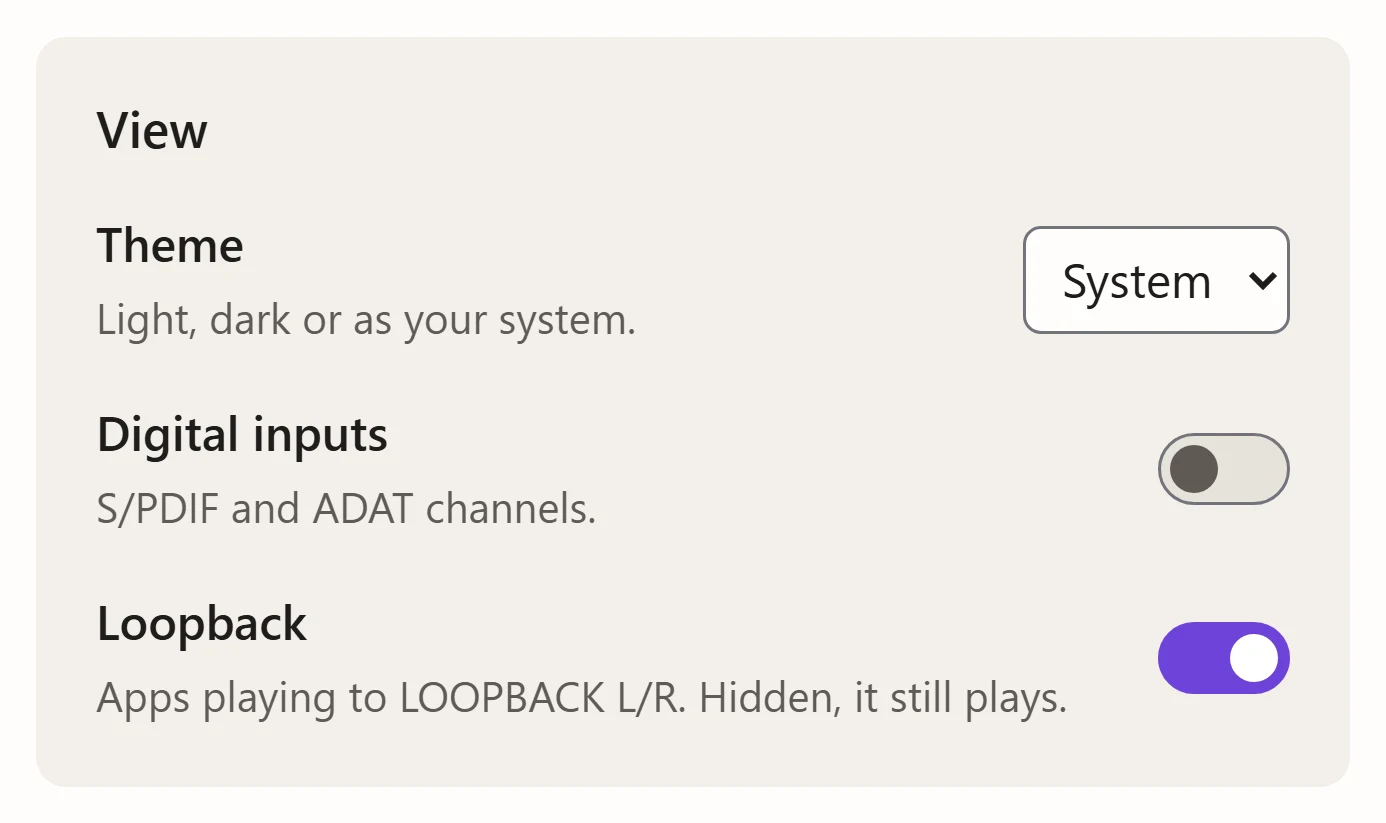
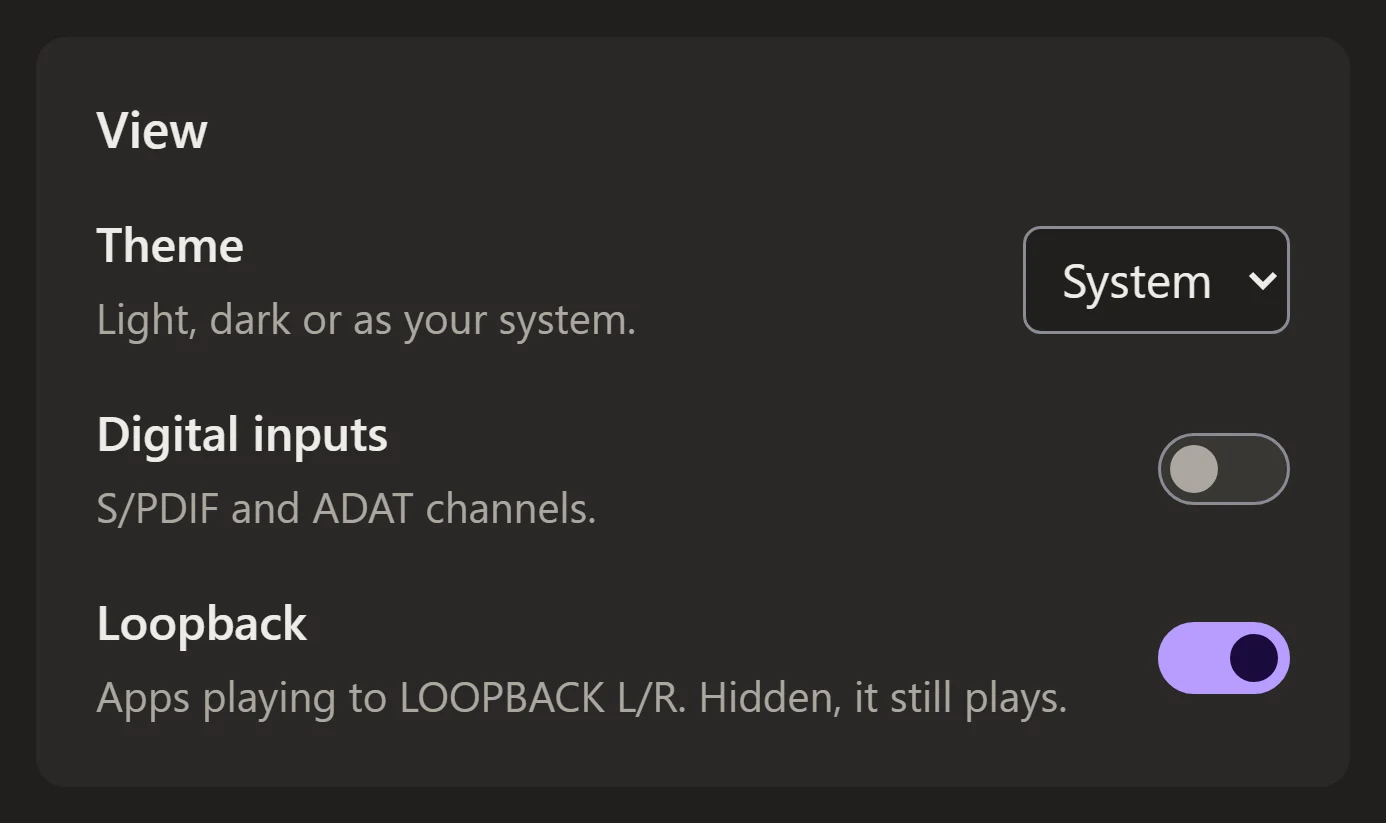
| Setting | What it does |
|---|---|
| Theme | Light, dark, or as your system. This guide follows it too. |
| Digital inputs | Shows the S/PDIF or ADAT strips, whichever the digital input is set to. |
| Loopback | Shows the Loopback strip. Hidden, it still plays at its level. |
Desktop app
Only in the desktop app: starting at sign-in, the tray, the Volt’s display at sleep, the phone remote and updates.
Your mix
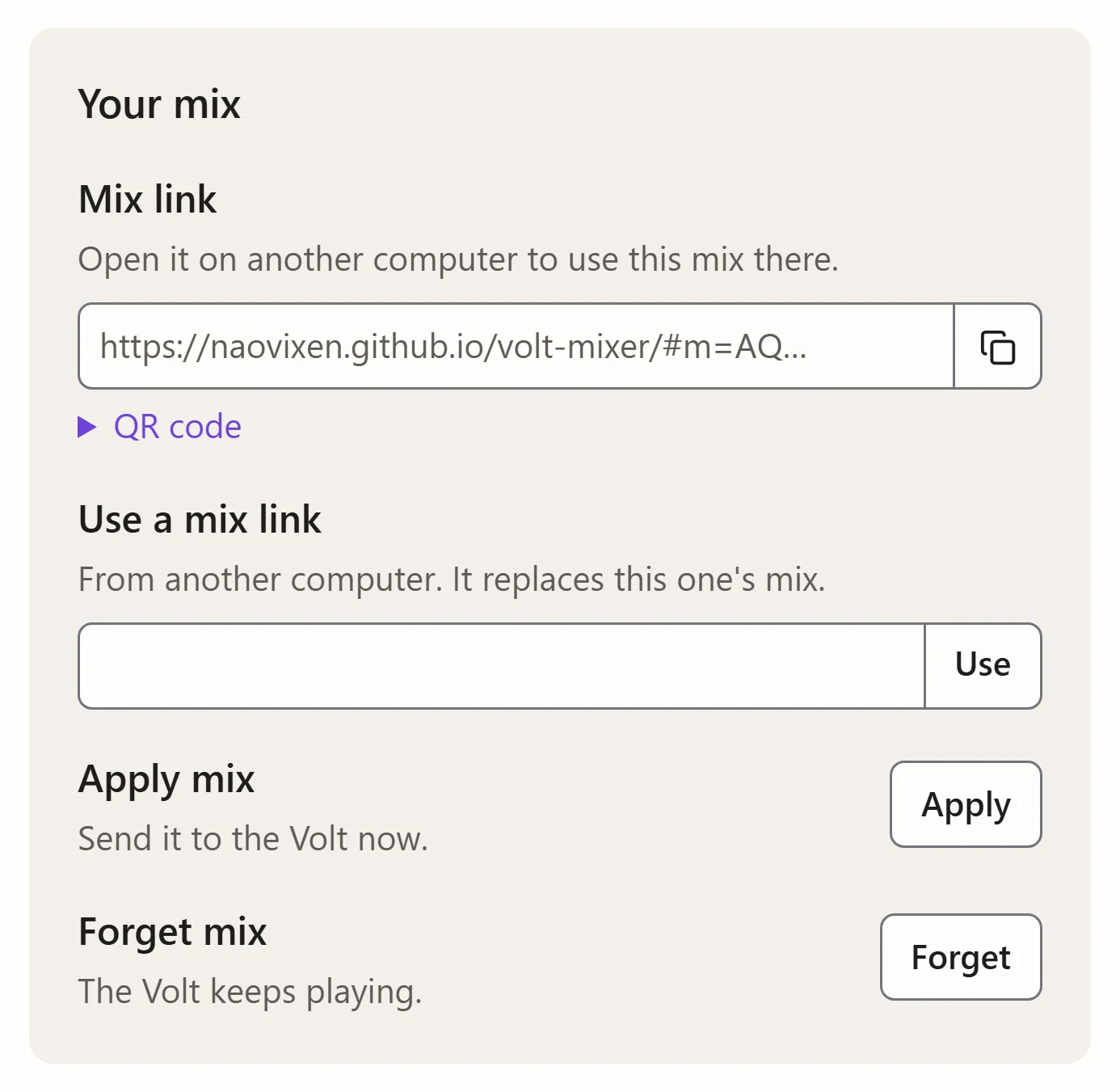
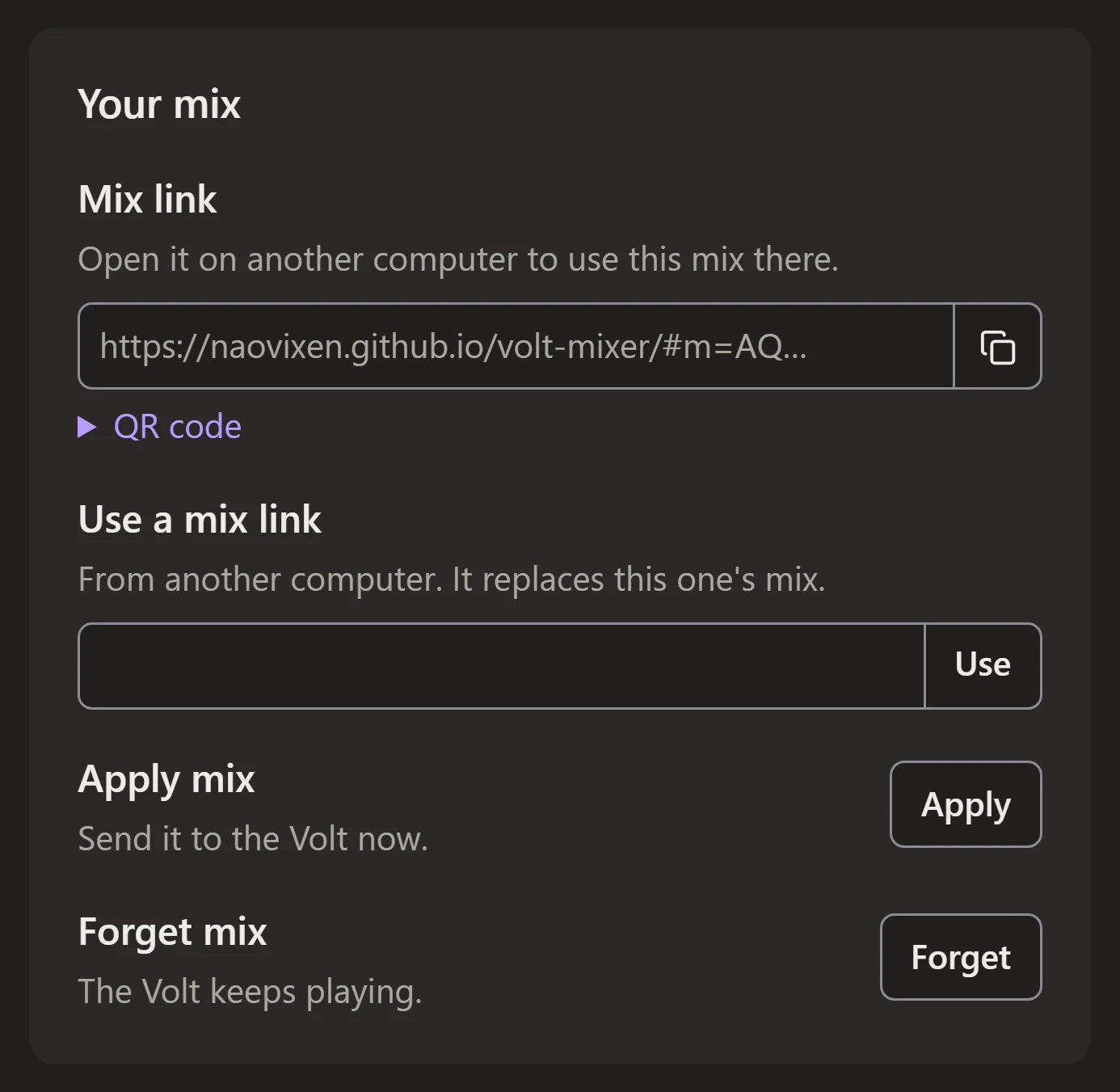
| Setting | What it does |
|---|---|
| Mix link | Click it, or the copy button, to copy it. QR code shows it for a phone or another camera. |
| Use a mix link | Paste a link from another computer or your phone. It replaces this computer’s mix, and asks first. |
| Apply mix | Sends this computer’s mix to the Volt again. |
| Forget mix | Removes this computer’s mix. The Volt keeps playing what it has, and the welcome panel comes back. |
Other computers shows these in use.
About
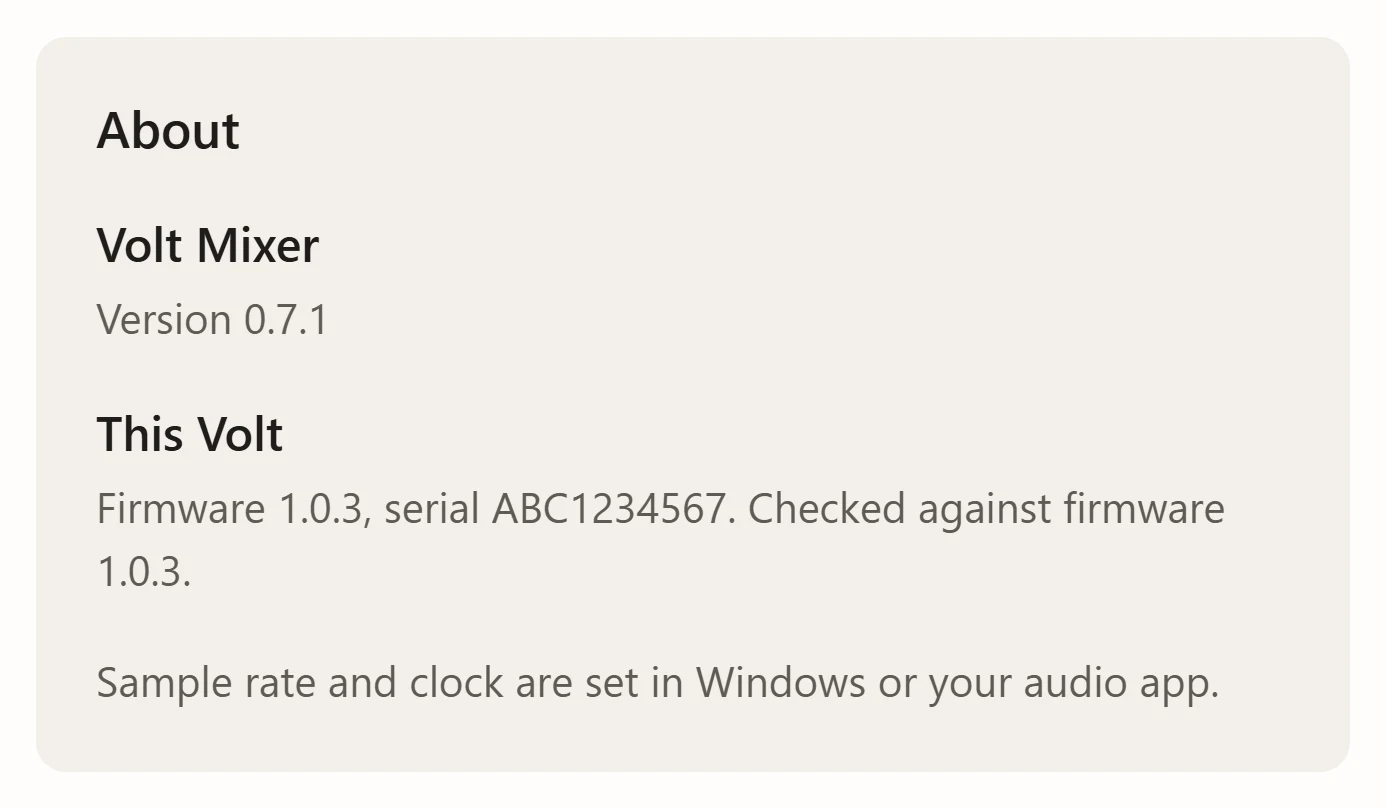
Which version of Volt Mixer this is, so you can check the one you’ve installed (in the desktop app) or the one the website is running. Below it, the Volt’s firmware and serial number, and the firmware Volt Mixer was checked against. The sample rate and clock aren’t here: set them in your computer’s sound settings or your audio app.