The mixer
Outputs and cues
The outputs panel sets how loud your speakers and headphones are. Cues decide what the headphones and the rear Line Out 3/4 play.
The outputs panel
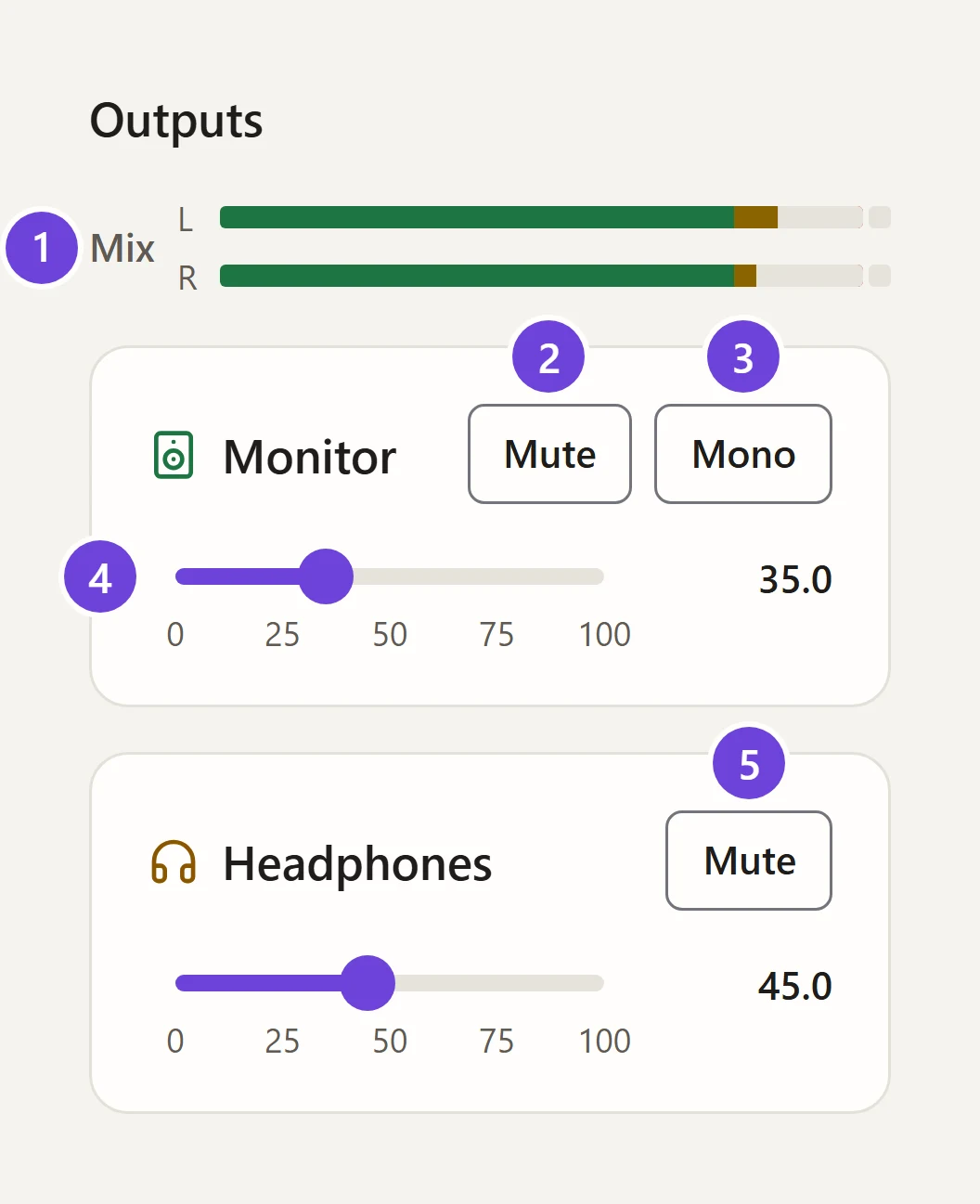
- Mix meter The monitor mix, left and right, before the Monitor level.
- Mute (Monitor) Silences your speakers.
- Mono Folds the monitor mix to mono.
- Monitor level Your speakers, from 0 to 100, the same scale as UAD Console.
- Mute (Headphones) Silences the headphones. Their level is the slider below it, also 0 to 100.
Where the sound goes
Channel faders and pans → Monitor mix → Monitors
Mix or own sends → Cue 1, Cue 2 → Headphones, Line Out 3/4
| Output | Plays | Set in |
|---|---|---|
| Monitors | The monitor mix: channel faders, pans, mutes and solo | The strips |
| Headphones | Cue 1 or Cue 2 | Settings › Cues and headphones |
| Line Out 3/4 | Your computer’s playback, or the same as Cue 1 or Cue 2 | Settings › Cues and headphones |
Cues
A cue is a mix for headphones. Each of the two can play:
- Monitor mix: the same as your speakers. The simple choice when it’s just you.
- Own mix: its own level for each channel, from the cue sends in each channel’s settings. For a performer who wants more of themselves, or less of the click.
The headphones play one cue, and Line Out 3/4 can play the other, so two people can each have their own mix. A separate headphone mix walks through it.