Beyond this computer
Desktop app
The same mixer in its own window, plus a quick mixer in the taskbar. It connects to the Volt by itself and can start when you sign in.
Install it
Download the app for your computer from the Releases page. It isn’t signed with a paid certificate, so the first time you open it:
| On | Download | The first time |
|---|---|---|
| Windows | The .exe |
If SmartScreen appears, choose More info › Run anyway. |
| macOS | The .dmg |
Open it, then go to System Settings › Privacy & Security › Open Anyway. |
| Linux | The .deb |
Install it as usual. The AppImage needs USB access set up. |
The tray mixer
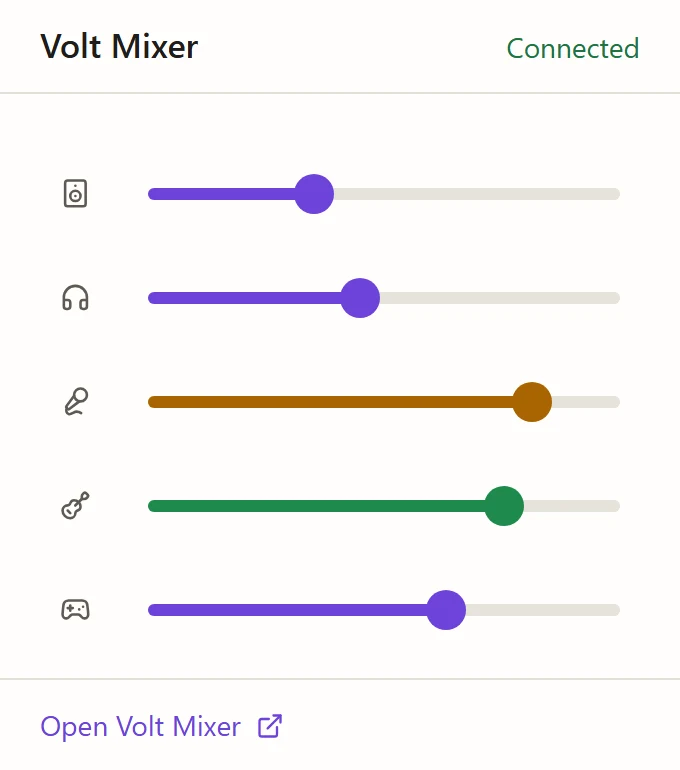
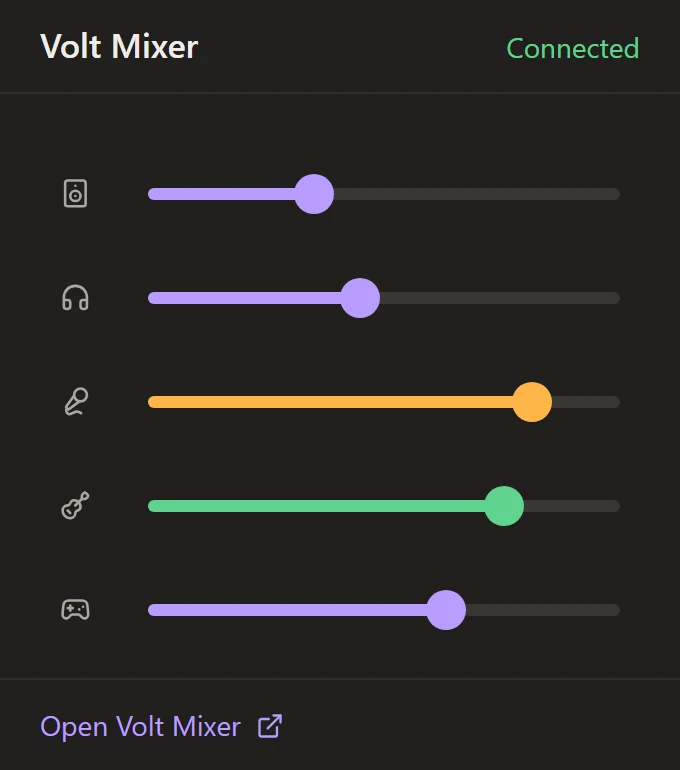
Click Volt Mixer’s icon in the taskbar, or the menu bar on a Mac, for a small mixer:
- Rows: Monitor and Headphones first, then your channels.
- The icon is the mute button. It turns into a struck-through speaker while muted. Hover over it to see the channel’s name.
- Drag a slider to set the level; the value shows while you drag.
- Open Volt Mixer opens the full window.
| On | To open the tray mixer |
|---|---|
| Windows | Click the icon. To keep it in view, turn it on in Settings › Personalisation › Taskbar › Other system tray icons. |
| macOS | Click the icon in the menu bar. Right-click it for the menu. |
| Linux | Open the icon’s menu and choose Mixer. On GNOME, tray icons need the AppIndicator extension. |
The icon’s menu also has Open Volt Mixer, Start at login and Quit Volt Mixer.
Settings
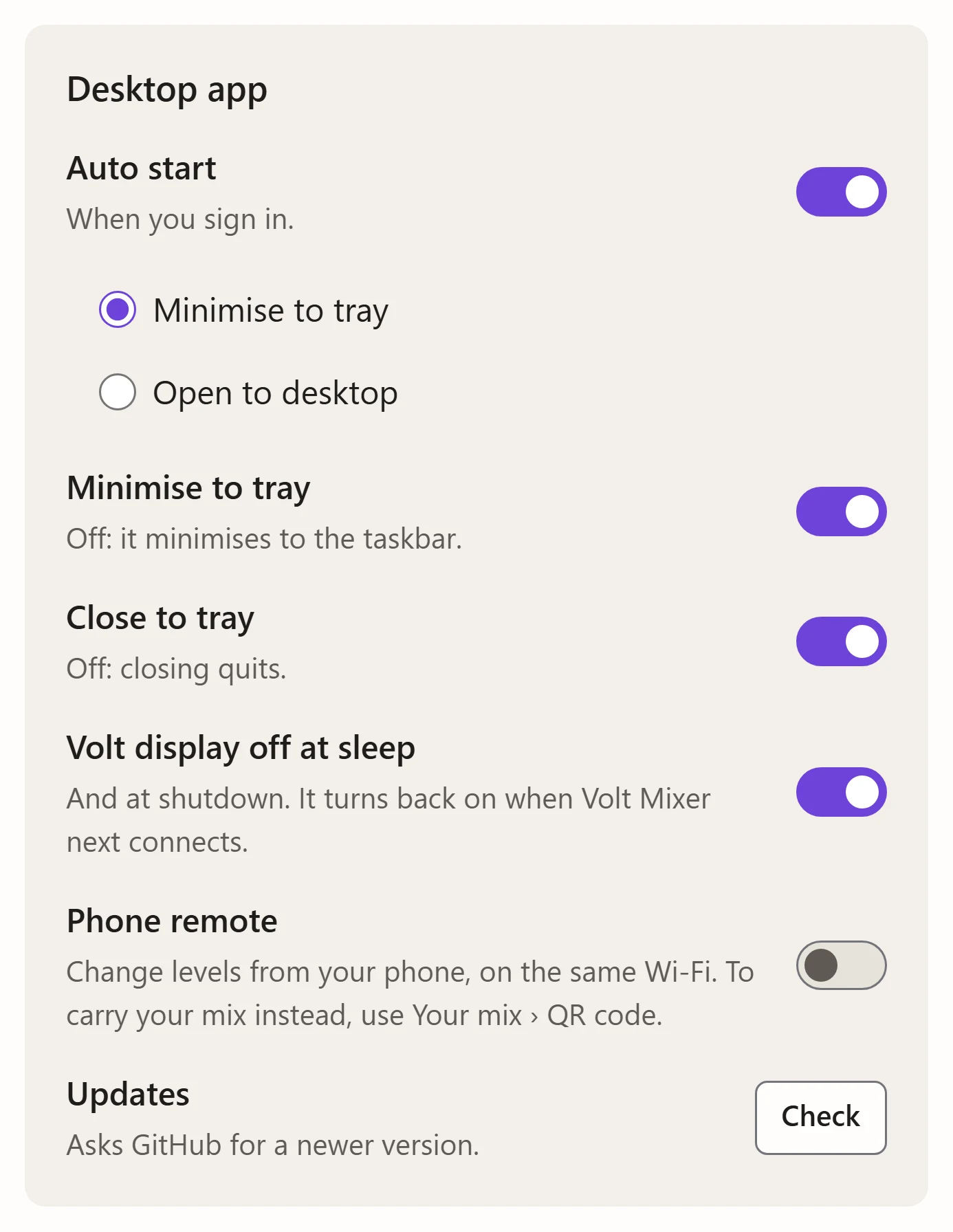
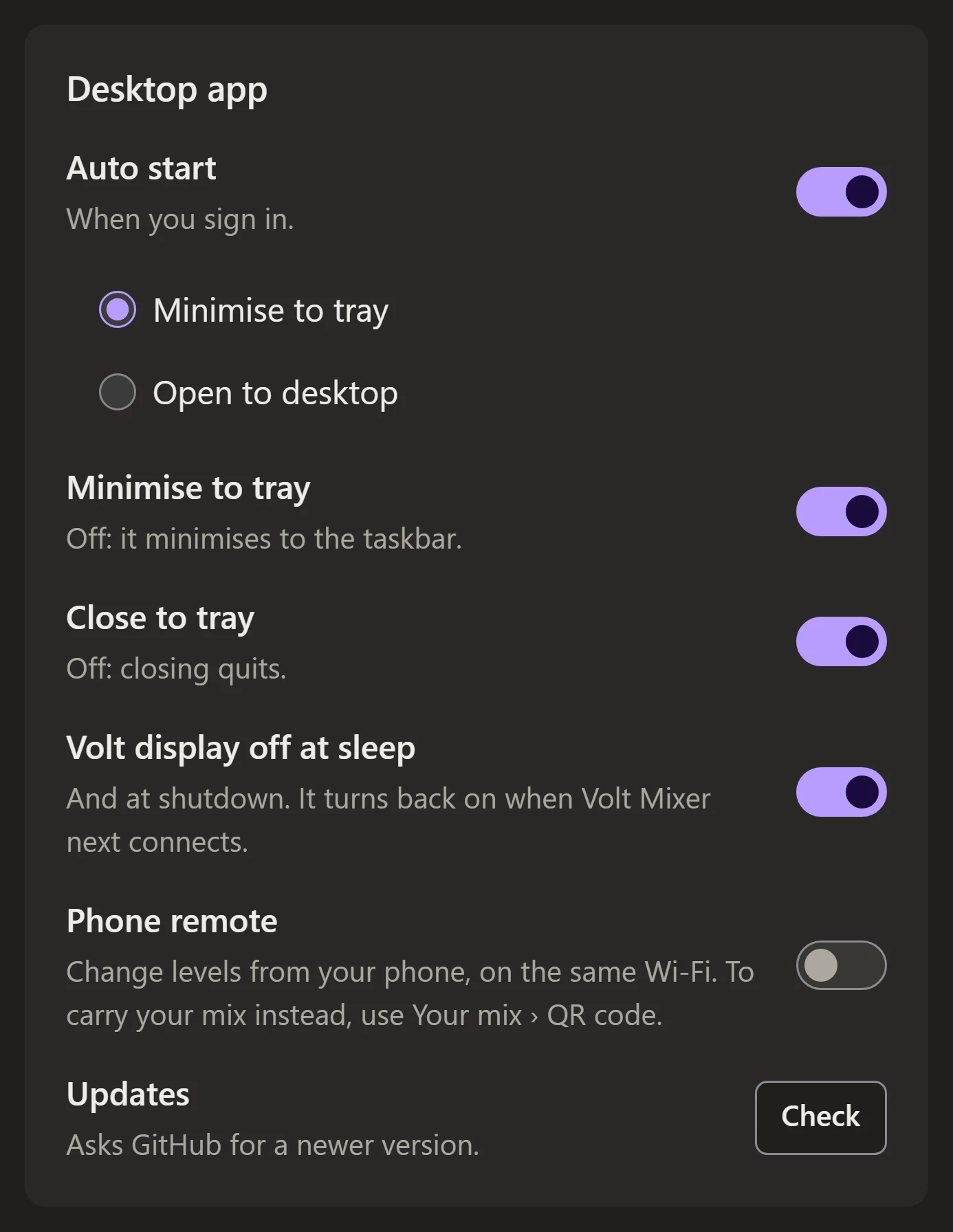
Settings › Desktop app is only in the app.
| Setting | What it does |
|---|---|
| Auto start | Starts Volt Mixer when you sign in, either minimised to the tray or open on the desktop. |
| Minimise to tray | Minimising puts Volt Mixer in the tray. Off, it minimises to the taskbar. |
| Close to tray | Closing the window keeps Volt Mixer running in the tray. Off, closing quits. |
| Volt display off at sleep | Turns the Volt’s display off when the computer sleeps or shuts down, and back on when Volt Mixer next connects. |
| Phone remote | The tray mixer on your phone. See Your phone. |
| Updates | Check asks GitHub for a newer version and links to it. |
In the tray, Volt Mixer closes its window completely and keeps working without it, so it uses little memory. Opening the window again takes a moment, and so does the tray mixer after a couple of minutes unused.
The app and the website together
On the same computer, the app keeps the mix and the website leaves it alone until the app closes. See one Volt Mixer at a time.