Beyond this computer
Your phone
Your phone can't connect to a Volt itself, but it can do two jobs. Each has its own QR code, in its own place.
Two jobs, two QR codes
| Carry your mix | Phone remote | |
|---|---|---|
| What it does | Takes a copy of your mix to another computer | Changes levels and mutes while you listen |
| Where its QR code is | Settings › Your mix › QR code | Settings › Desktop app › Phone remote |
| What it needs | Nothing: works with the website, anywhere | The desktop app, open, and the same Wi-Fi |
Why the difference: for the remote, your phone has to reach the computer the whole time you use it, and only the desktop app can listen for that. Carrying a mix is just a link, so it works everywhere.
Carry your mix
Take your latest mix from one computer to another, with no app and no account.
- On the computer with the mix you want, open Settings › Your mix and choose QR code.
- Scan it with your phone’s camera. Volt Mixer opens on the phone and keeps the mix.
- At the other computer, open Volt Mixer on the phone again. It shows the mix as a QR code.
- Scan that with the computer’s camera (on Windows, the Camera app reads QR codes), or choose Send the link and open it on the computer.
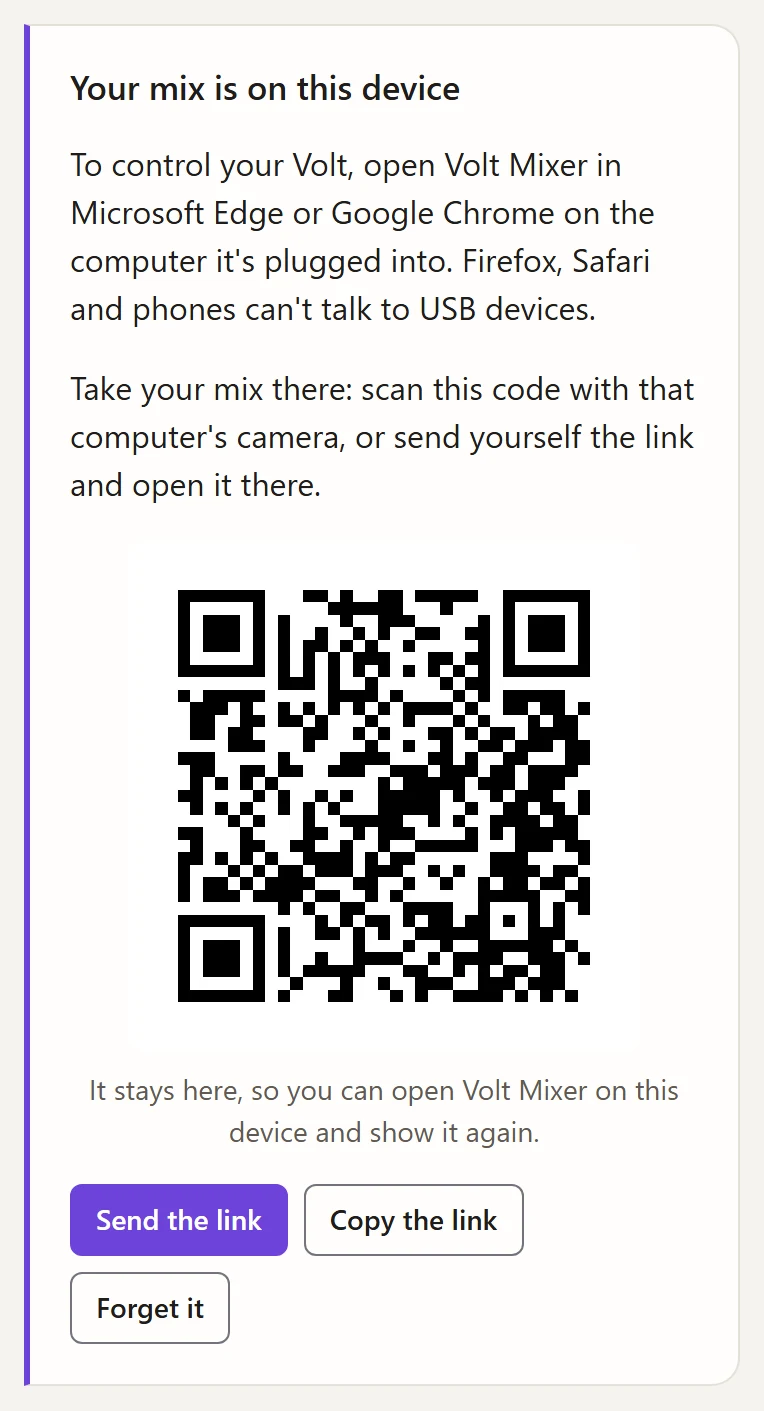
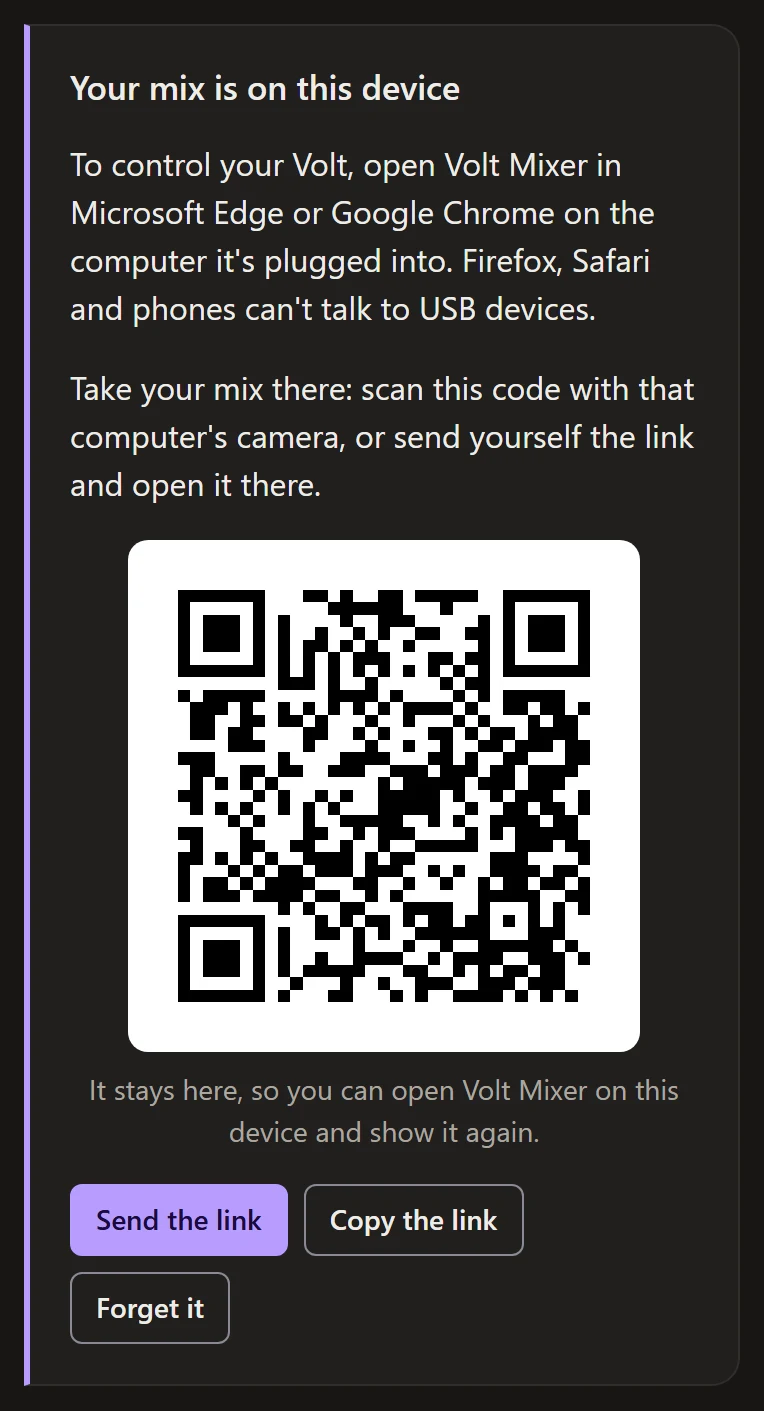
The same happens in Firefox or Safari on a computer, since they can’t talk to USB devices either: Volt Mixer keeps the mix there and says to open it in Microsoft Edge or Google Chrome on the computer the Volt is plugged into.
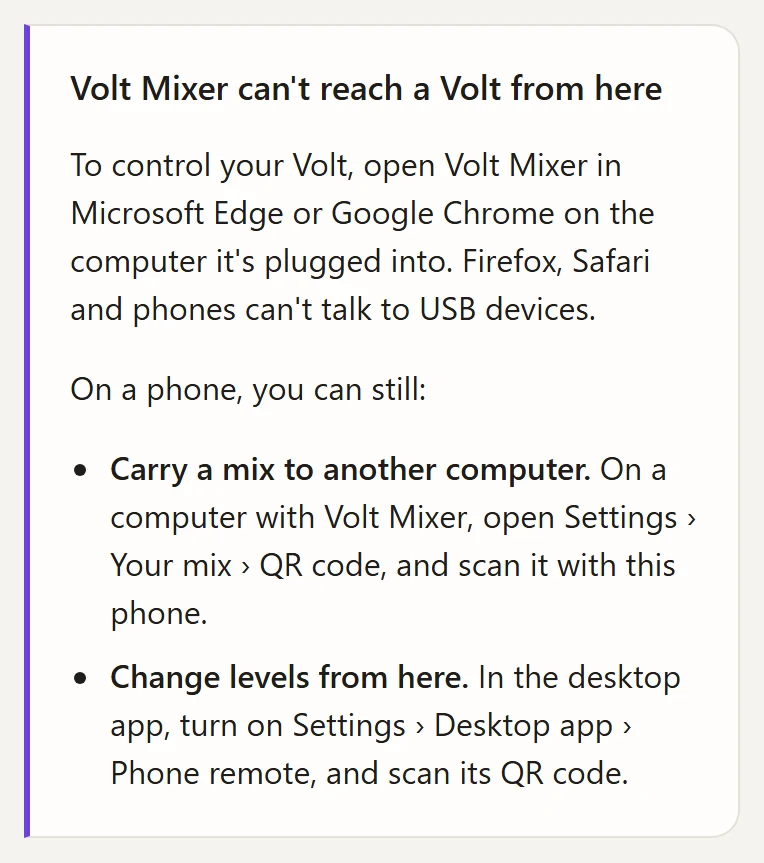
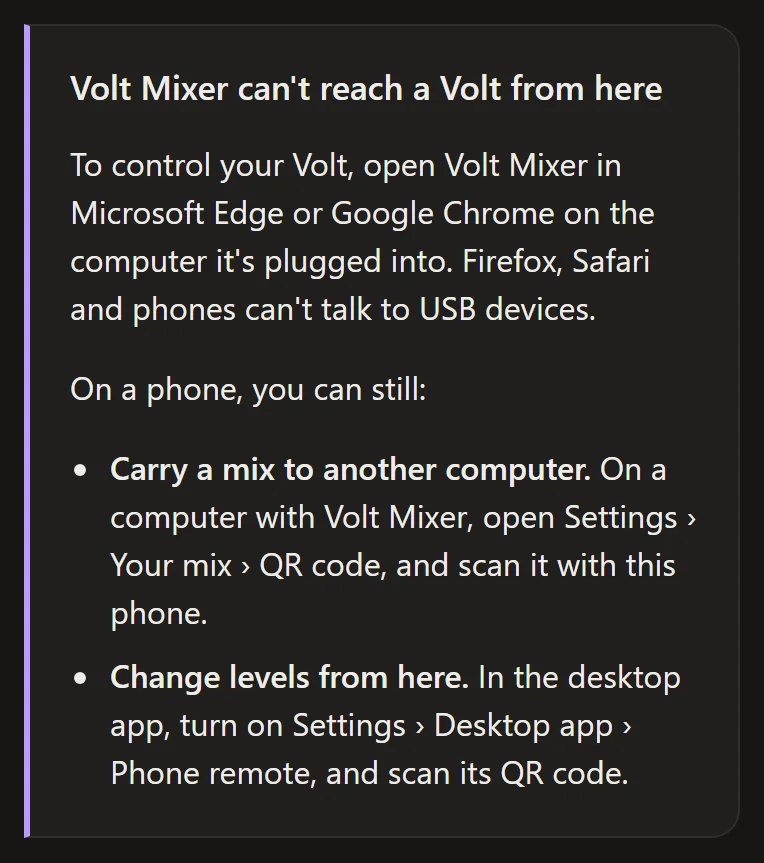
The phone keeps the mix until you choose Forget it, so you can carry the same mix to any computer. Opened with nothing to carry, Volt Mixer on the phone explains both jobs and where their QR codes are:
Phone remote
The tray mixer on your phone, for changing levels from across the room. It needs the desktop app, open and connected to the Volt, and your phone on the same Wi-Fi.
Set it up
- In the desktop app, open Settings › Desktop app and turn on Phone remote.
- With your phone on the same Wi-Fi as the computer, scan its QR code with the phone’s camera.
- The mixer opens in your phone’s browser. Add it to your home screen to open it again quickly.
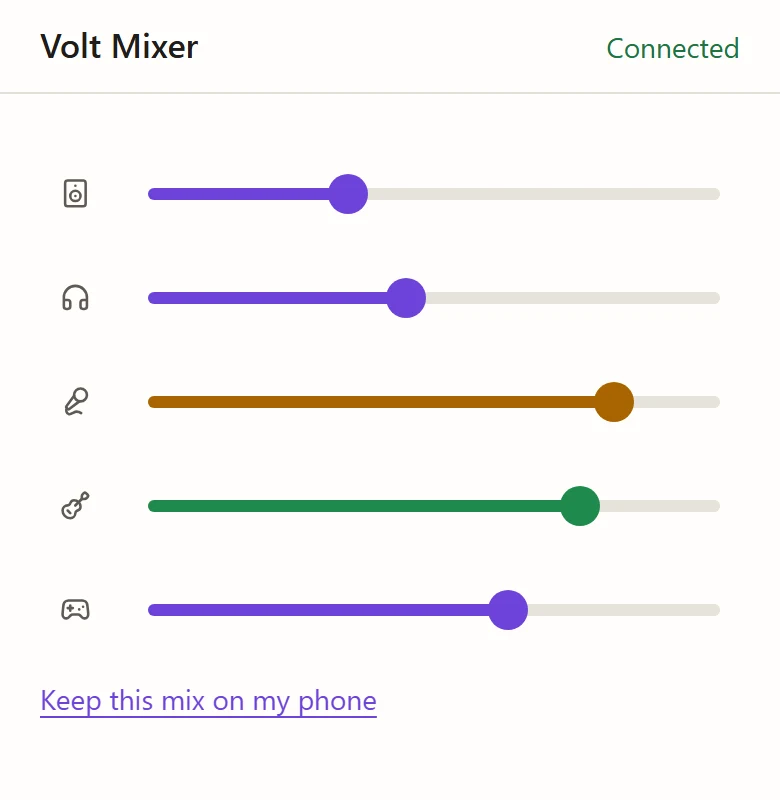
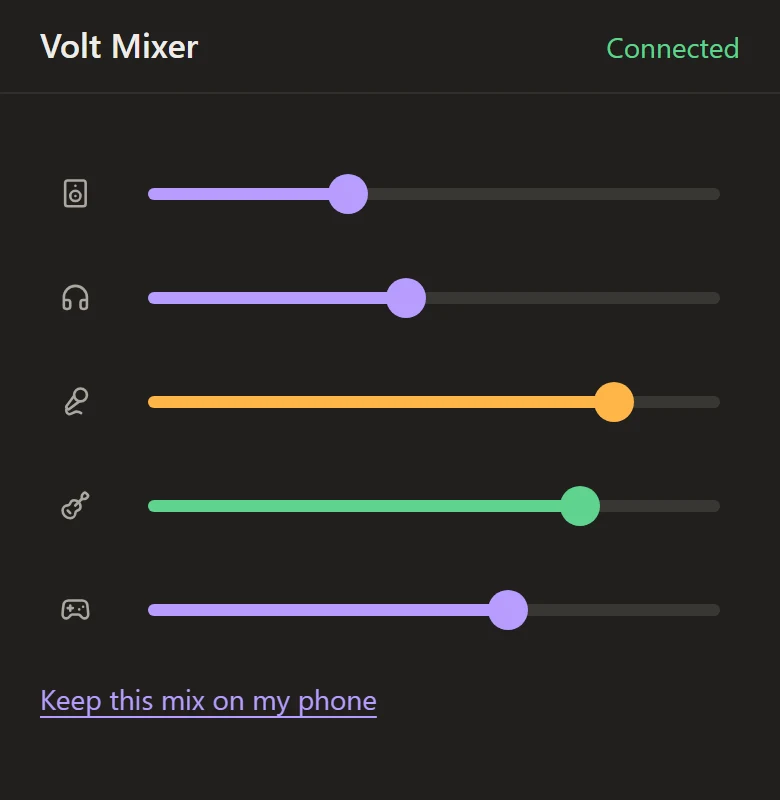
What you can do from the phone
- Set the Monitor and Headphones levels, and mute them: tap a row’s icon.
- Set each channel’s level, and mute it, for the channels shown in the tray.
- Keep this mix on my phone takes the computer’s mix with you, ready to carry. No second QR code needed.
Everything else, like 48V, gain and headphone routing, stays on the computer, so nothing risky can be changed from the sofa.
The status
Above the remote’s QR code, the app shows how it’s doing.
| It says | It means |
|---|---|
| Starting… | The remote is starting up. |
| Waiting for a phone | Ready. Scan the code. |
| 1 phone connected | Shown in green while phones are in. |
| Isn’t on the network Phone remote was set up on | The remote stays off away from home. |
| Anything in amber | Something is wrong. The message says what. |
The remote only answers on the network you turned it on in, usually your home Wi-Fi. Take the laptop to a café and it stays off; back home, it starts again by itself. To use it on another network, choose that network’s address in the Address list, which appears whenever the computer is away from the remote’s network or on more than one.
Unpair phones
New code makes a new QR code and unpairs every phone. Each one has to scan again. Use it if you’ve shared the code by mistake, or a phone has gone missing.
Phones paired with version 0.5.0 or earlier need to scan the code once more after the update, as the app now checks them a safer way.
If the phone can’t connect
- Check the phone is on the same Wi-Fi as the computer, not mobile data.
- Turn off any VPN, on the phone and on the computer.
- On Windows, set your home network to Private in Settings › Network & internet.
- Allow Volt Mixer through Windows Firewall on private networks.