The mixer
Channels
Each of the Volt's inputs has a strip, with its level in the monitor mix, its meters and its buttons. A linked pair shares one stereo strip.
Parts of a strip
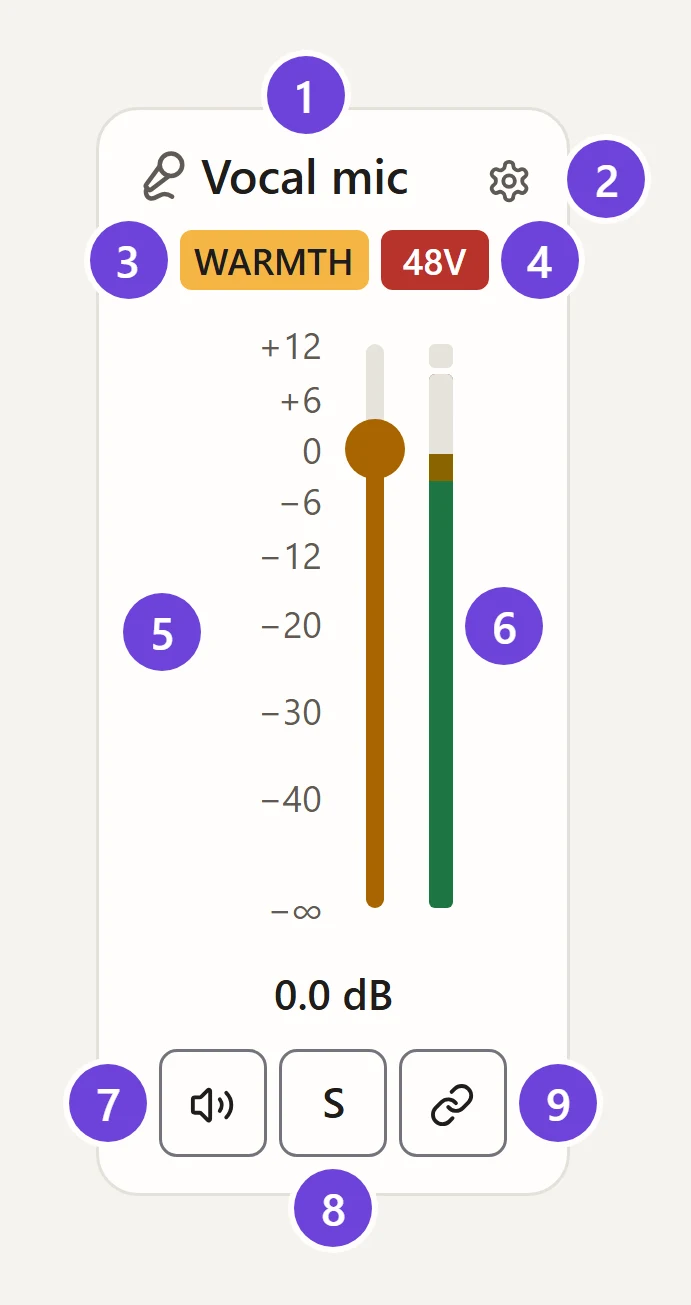
- Name and icon Change both in the channel settings.
- Gear Opens the channel settings: gain, pan, headphone mixes and more.
- Tone (Inputs 1–4) Each press steps to the next: Off, Warmth, Focus, Shine. With a tone on, the tag and the fader take the colour of the Volt’s TONE ring.
- 48V (Inputs 1 and 2) Phantom power, lit red while it’s on. It asks before turning on.
- Fader The channel’s level in the monitor mix, from off (−∞) to +12 dB, with the exact level underneath. It catches at 0 dB on the way past.
- Meters How loud the input is: one bar for mono, two for stereo.
- Mute The speaker is struck through while muted.
- Solo (S) Hear only the soloed channels.
- Link Join this channel and its neighbour into one stereo strip.
The strips
| Strip | What it is |
|---|---|
| Input 1, Input 2 | The mic and instrument inputs on the front, with preamp gain and 48V. |
| Line 3, Line 4 | The line inputs on the back, at a fixed gain. Good for a games console or a synth. |
| S/PDIF or ADAT 1–8 | The optical input, whichever format it’s set to. Shown when you turn it on in Settings › View. |
| Loopback | Apps on your computer playing to the Volt’s LOOPBACK L/R output. Always stereo. |
Mute
Mute takes the channel out of the monitor mix.
- On Inputs 1–4 it’s the Volt’s own Direct monitoring, so it works before you have a mix and the Volt remembers it. You stop hearing the input through the Volt; what your computer records isn’t affected.
- On S/PDIF, ADAT and Loopback it’s part of your mix.
Solo
While any channel is soloed, the monitor mix plays only the soloed ones. Solo more than one to hear a few together; press S again to un-solo. The headphone mixes (cues) aren’t affected.
A soloed strip that isn’t shown (hidden in Settings › View, or ADAT inputs while the Volt is set to S/PDIF) still keeps the rest of the monitor mix silent. A note at the top says so, with a button to clear the solo; Volt Mixer never clears it for you, as that would turn every other channel back up.
Link
Link joins a pair into one stereo strip: one fader, one mute, one solo. The pairs are Inputs 1 and 2, Lines 3 and 4, S/PDIF left and right, and ADAT 1/2, 3/4, 5/6 and 7/8. Holding the Volt’s INPUT button links and unlinks too.
Loopback, the computer’s own sound, is always stereo, so it has no link button.
Meters
| Colour | Level |
|---|---|
| Green | Below −12 dBFS: comfortable |
| Amber | −12 to −3 dBFS: loud |
| Red | Above −3 dBFS: too close |
The small light at the top of a meter comes on when the input reaches full scale, and stays on for two seconds so you don’t miss it. If it lights often, turn the gain down. Not every channel has a meter: the Volt only meters some of them.
Showing and hiding strips
Settings › View shows or hides the digital and Loopback strips. A hidden strip still plays at its level: hiding only tidies the page.